

Member Profile FAQ

WORSHIP SERVICES
Sundays at 10:30 am
“I welcome you to join this vibrant, intergenerational community.
~ Reverend Dr. Kristen Harper
To update your profile:
Log into the Online Member Profiles
Click on the Profile Management button.
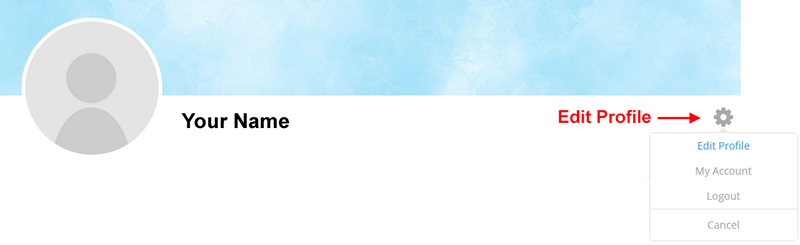
Click on the gear icon beneath your banner image.
In the drop down list, select Edit Profile.
Change your cover/banner photo:
- Click on the center of the banner photo and select Change Cover Photo or Remove Cover Photo
- Select the Upload button
- Locate the file on your computer. Once selected, click on the Open button
- Move and/or resize the selection to capture the part of the image that will be displayed
- Select the Apply button
- To save your changes, select the Update Profile button located at the bottom of the page or select the check mark located beneath the cover/photo banner.
File type: JPEG or PNG
Max file size: 2 MB
Update your profile pic:
- Click on the center of profile picture and select Upload Photo
- Locate the file on your computer. Once selected, click on the Open button
- Move and/or resize the selection to capture the part of the image that will be displayed
- Select the Apply button
- To save your changes, select the Update Profile button located at the bottom of the page or select the check mark located beneath the cover/photo banner.
File type: JPEG or PNG
Max file size: 2 MB
Update the various profile information fields.
Note: Only the Church Administrator can update the Status and Member Since fields. If you need these fields updated, please contact the office.
To save your changes, select the Update Profile button located at the bottom of the page or select the check mark located beneath the cover/photo banner.
To update your email address or password:
Log into the Online Member Profiles
Click on the Account Management button
Note: you cannot change your username.
Update Email Address:
- On the main Account tab, type your new email address in the Email Address field.
- Select the Update Account button
Update Password:
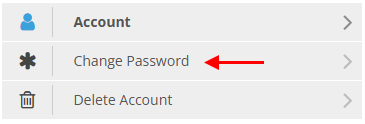
To change your password, click Change Password in the left hand menu.
- Enter your current password
- Enter your new password twice
- Select the Update Password button
Please read guidelines on choosing a strong password.
Please choose a strong password:
- At least 8 characters
- Uppercase and lowercase letters
- At least one number
- Avoid common words or sequences of letters/numbers